> ## Documentation Index
> Fetch the complete documentation index at: https://hyma.mintlify.site/llms.txt
> Use this file to discover all available pages before exploring further.
# Azure OpenAI
> Configure Hymalaia to use GPT models hosted on Azure OpenAI.
Hymalaia supports GPT models deployed through **Azure OpenAI** for full enterprise-level flexibility and control.
***
## 🛠 Setting up Azure OpenAI Endpoint
Follow these steps to integrate Azure OpenAI with Hymalaia:
### 1. Access Azure OpenAI Service
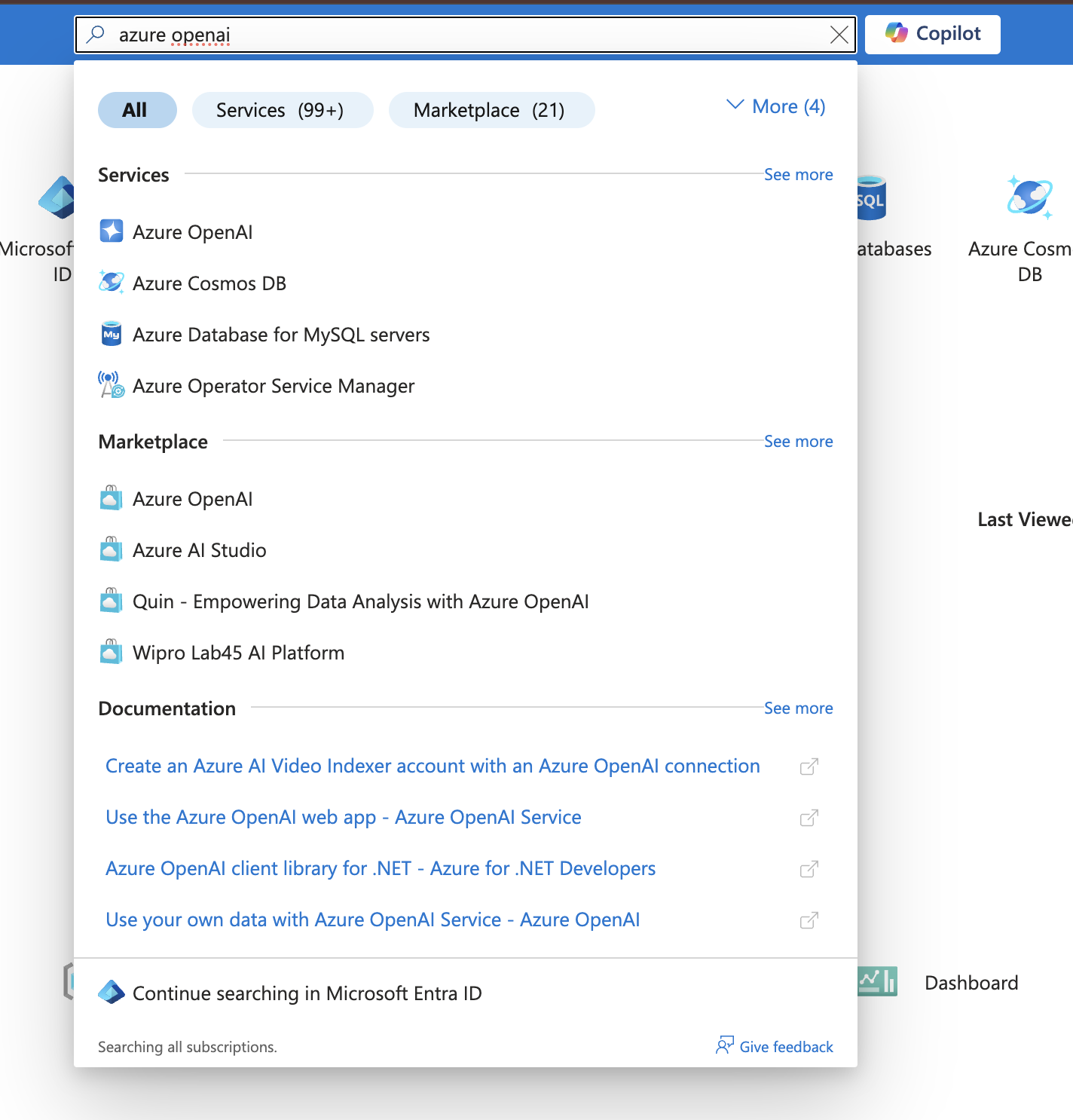
* Go to the [Azure Portal](https://portal.azure.com/)
* Search for **Azure OpenAI Service**
 ### 2. Create a New Resource
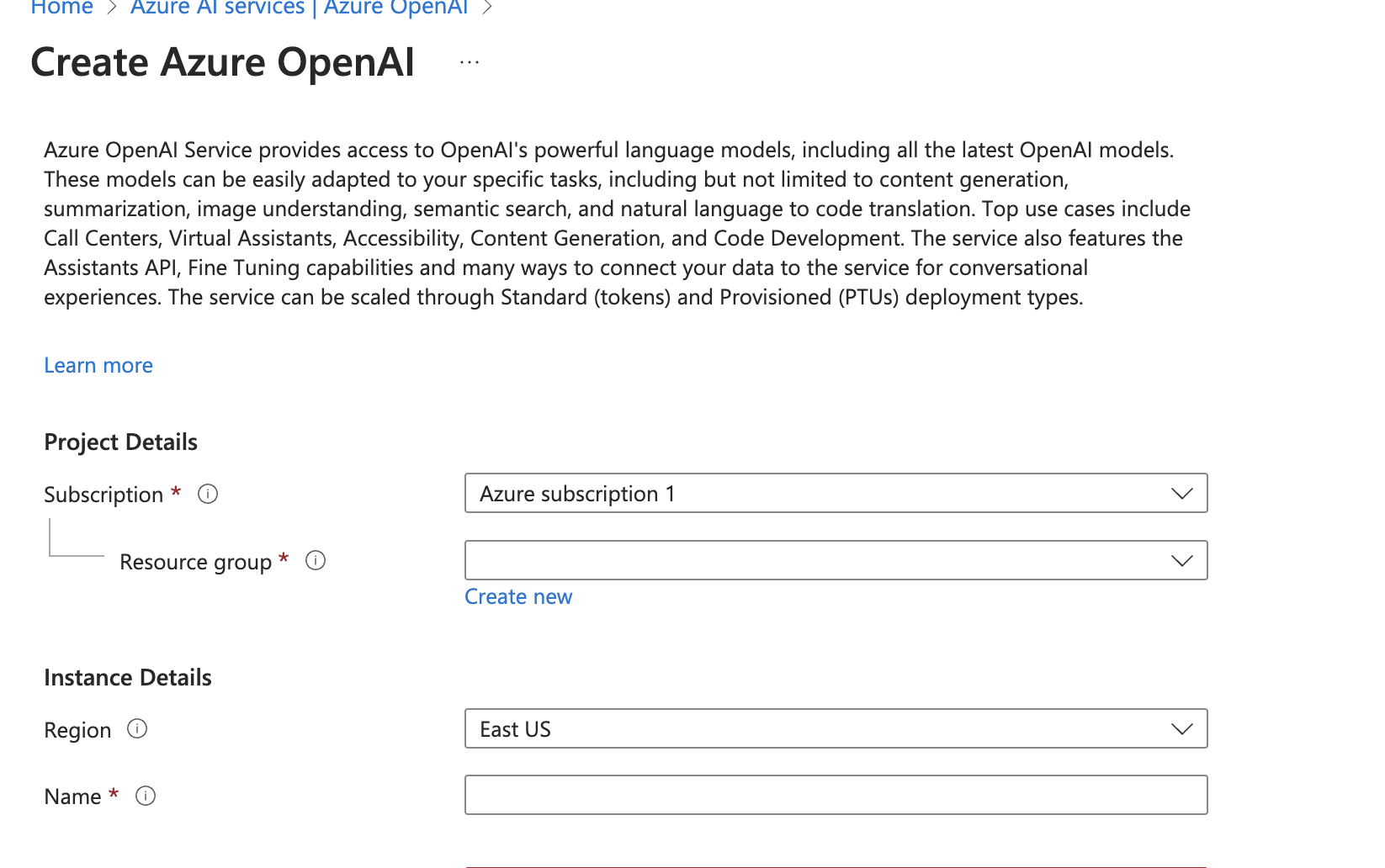
* Click **"Create a resource"**
* Create a **new resource group**
* Fill in the required form fields to configure your instance
### 2. Create a New Resource
* Click **"Create a resource"**
* Create a **new resource group**
* Fill in the required form fields to configure your instance
 ### 3. Complete Deployment
* Wait for the deployment to finish
* Navigate to [Azure OpenAI Studio](https://oai.azure.com/)
### 4. Open the Chat Panel
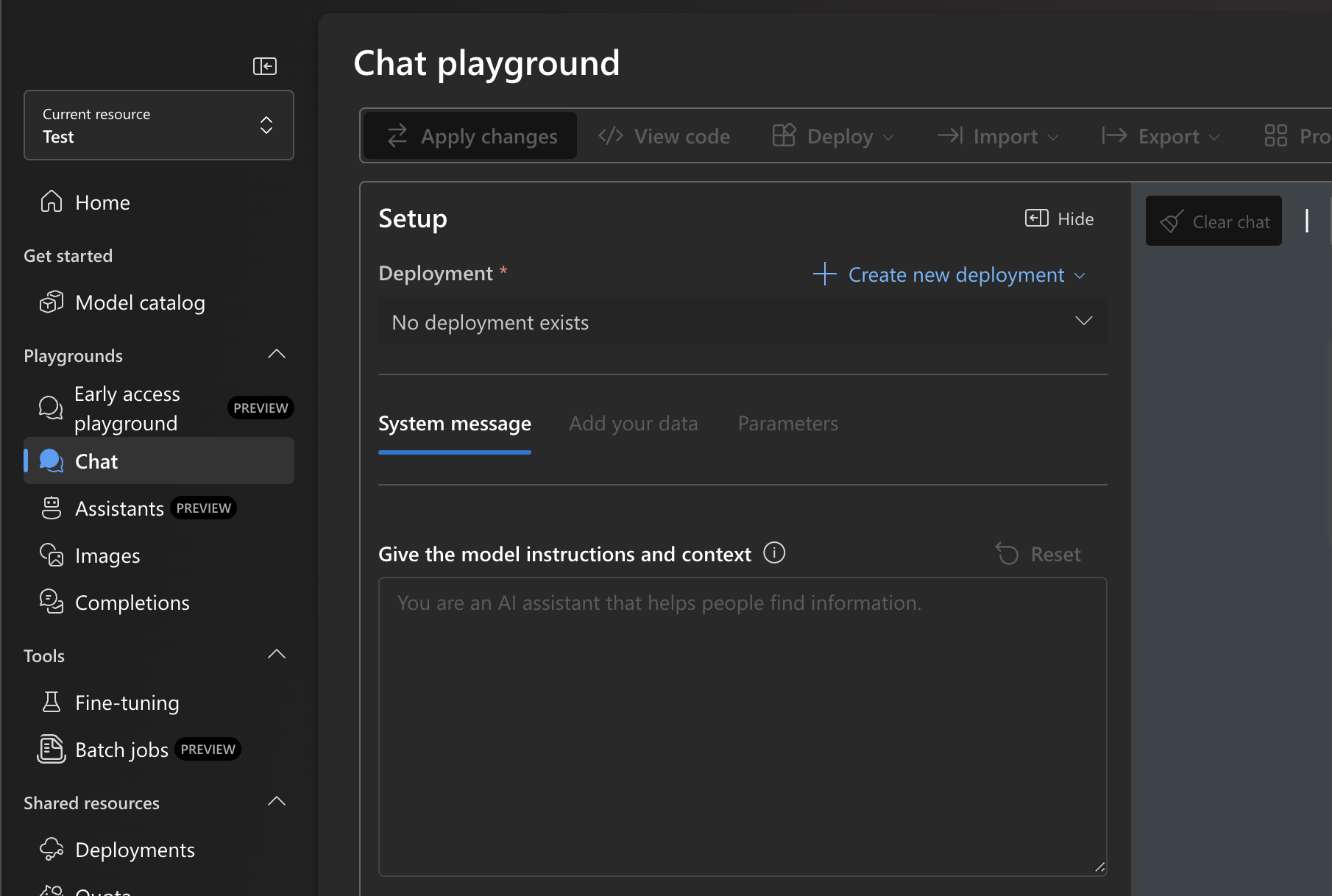
* In the Studio, go to the **Chat** panel
### 3. Complete Deployment
* Wait for the deployment to finish
* Navigate to [Azure OpenAI Studio](https://oai.azure.com/)
### 4. Open the Chat Panel
* In the Studio, go to the **Chat** panel
 ### 5. Deploy a Model
* Click **"Create a new deployment"**
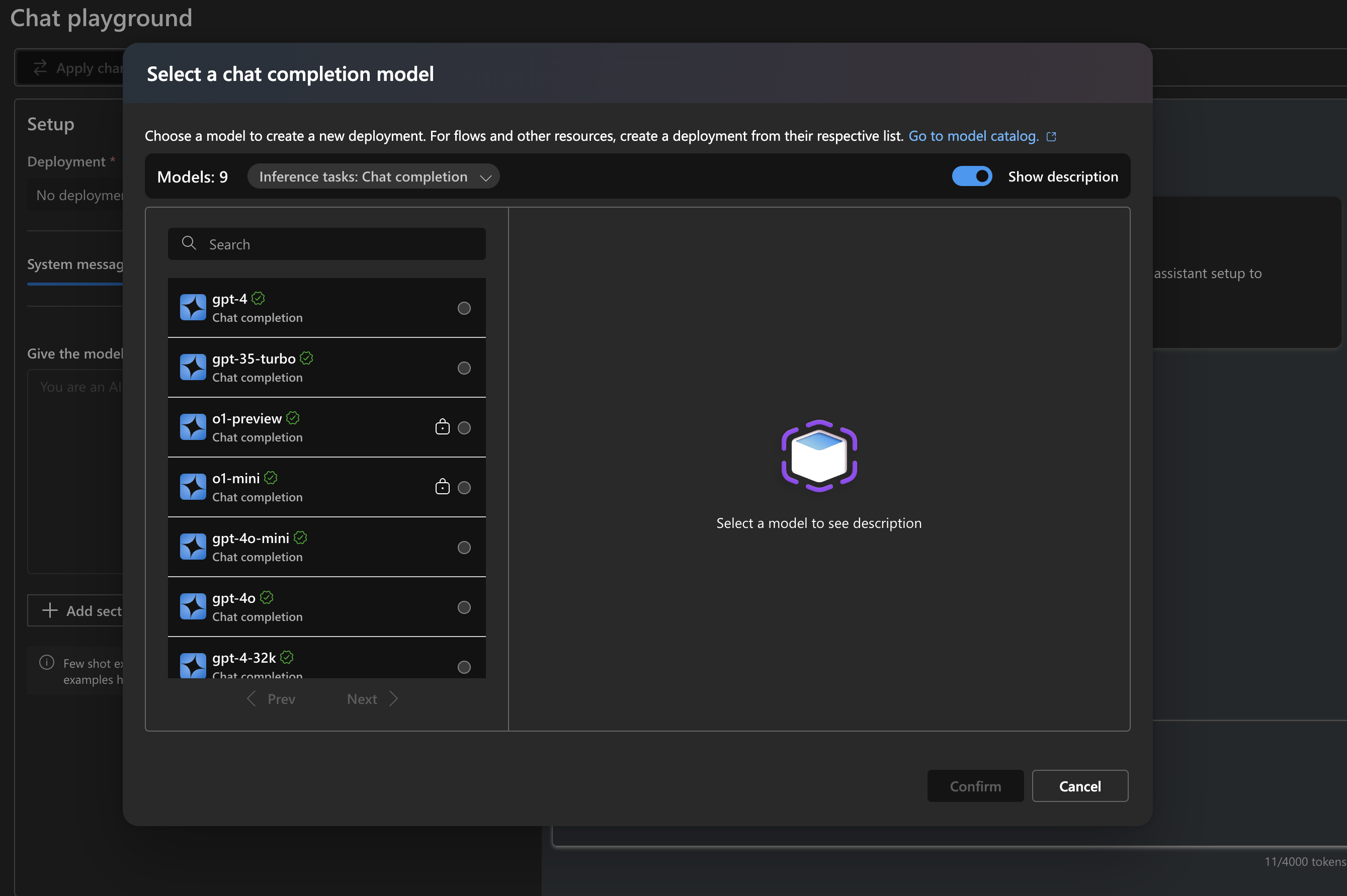
* Select a **chat completion model** (e.g., `gpt-4`, `gpt-35-turbo`)
### 5. Deploy a Model
* Click **"Create a new deployment"**
* Select a **chat completion model** (e.g., `gpt-4`, `gpt-35-turbo`)
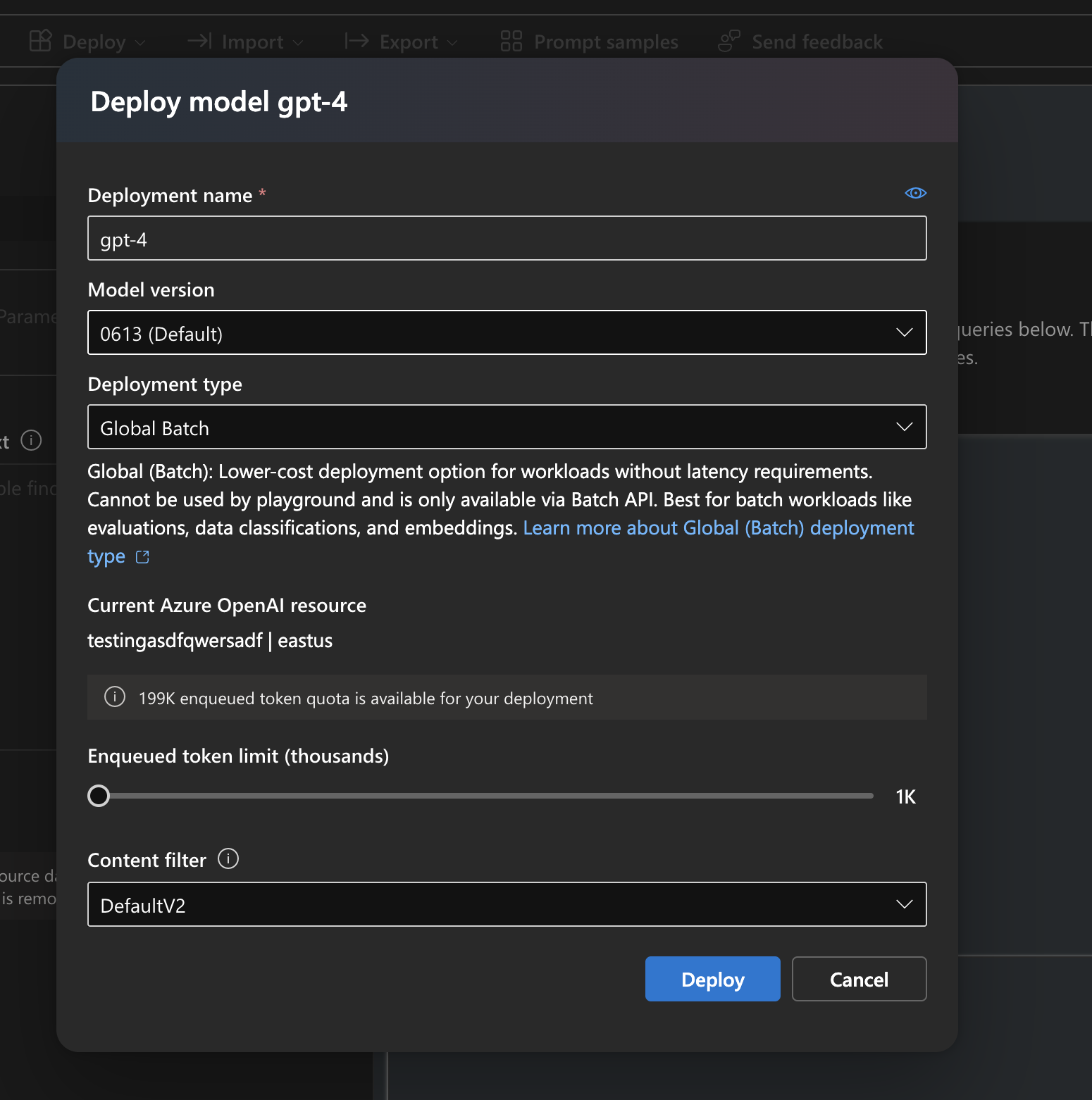 ### 6. Configure Settings
* Choose your model, set any parameters
* Deploy it
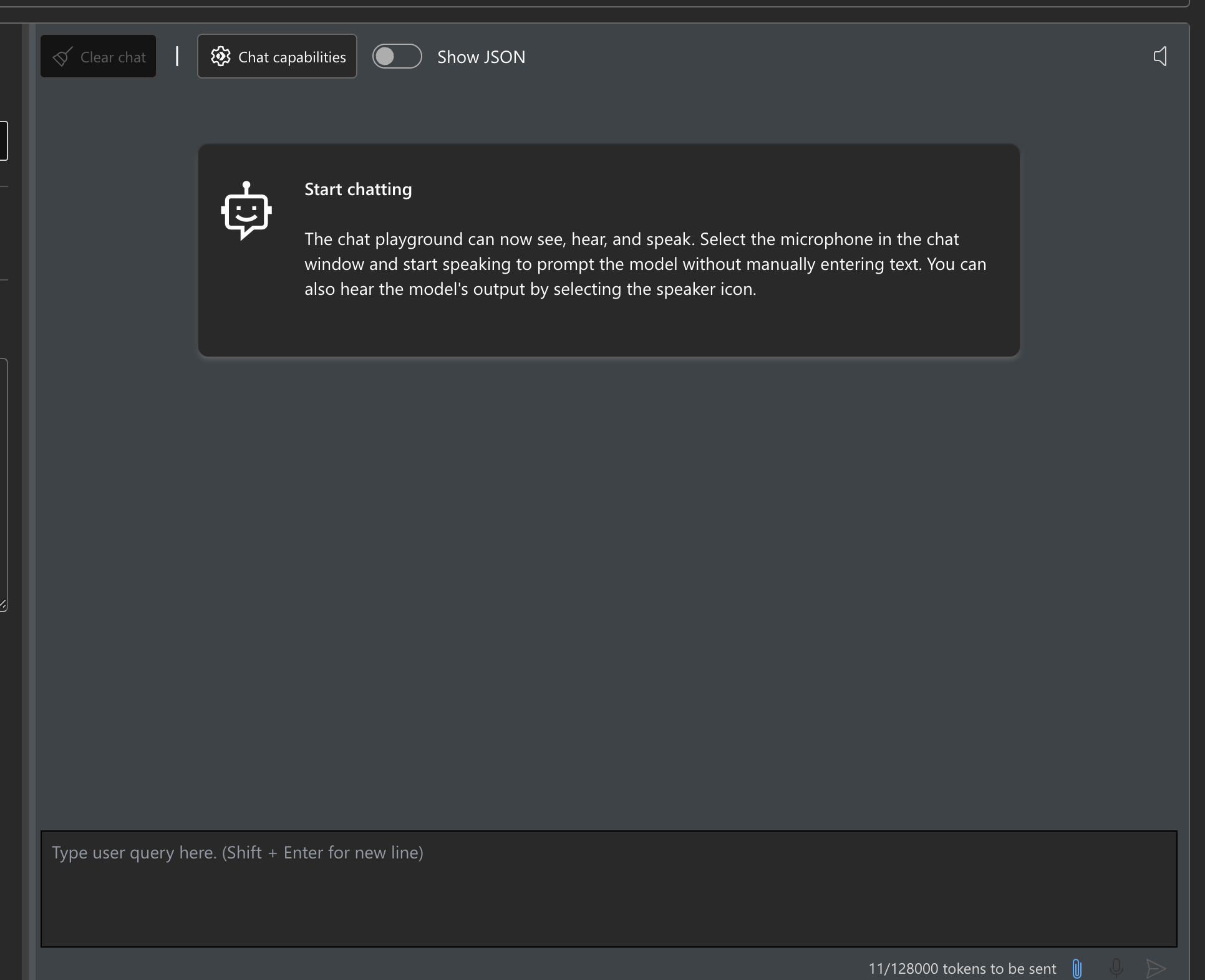
### 7. Test the Configuration
* Use the chat bar on the right to test your model
### 6. Configure Settings
* Choose your model, set any parameters
* Deploy it
### 7. Test the Configuration
* Use the chat bar on the right to test your model
 ### 8. Get Your Credentials
* Click **"View Code"** in the Studio
### 8. Get Your Credentials
* Click **"View Code"** in the Studio
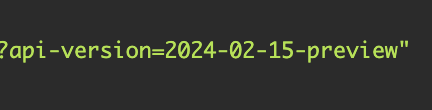
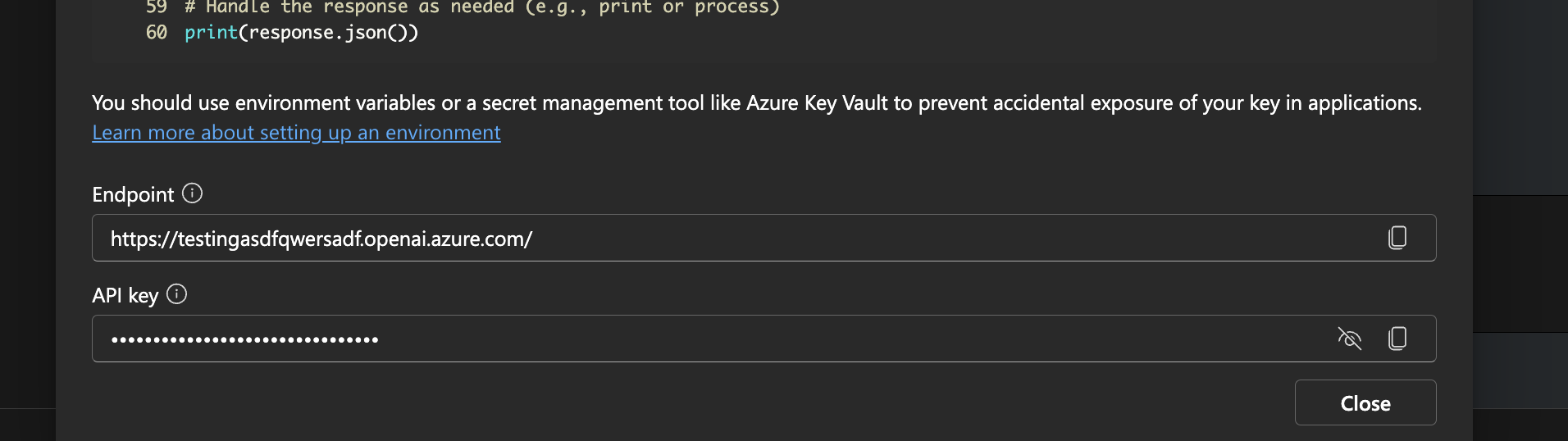 * Copy the following credentials:
* `API version`: The string after `?api-version=...`
* `API Base`: The `Endpoint` URL
* `API Key`: The obfuscated API key
* Copy the following credentials:
* `API version`: The string after `?api-version=...`
* `API Base`: The `Endpoint` URL
* `API Key`: The obfuscated API key
 ***
## ✅ Using with Hymalaia
1. Go to the **Admin Panel**
2. Select **LLM Providers**
3. Choose **Azure OpenAI**
4. Paste in your credentials:
* **API Base**
* **API Key**
* **API Version**
* **Deployment name** (the name you used during model deployment)
Hymalaia will now route queries through your Azure-hosted GPT model.
***
***
## ✅ Using with Hymalaia
1. Go to the **Admin Panel**
2. Select **LLM Providers**
3. Choose **Azure OpenAI**
4. Paste in your credentials:
* **API Base**
* **API Key**
* **API Version**
* **Deployment name** (the name you used during model deployment)
Hymalaia will now route queries through your Azure-hosted GPT model.
***