> ## Documentation Index
> Fetch the complete documentation index at: https://hyma.mintlify.site/llms.txt
> Use this file to discover all available pages before exploring further.
# Vertex AI
> Configure Hymalaia to use Vertex AI for LLMs via Google Cloud.
Hymalaia supports integration with **Vertex AI**, the managed AI platform by Google Cloud.
You can configure Vertex AI using **two methods**:
* ✅ `gcloud CLI` authentication
* 🔐 `Service Account` authentication
***
## ✅ Use the gcloud CLI to authenticate
1. **Install the gcloud CLI**\
[Install gcloud CLI](https://cloud.google.com/sdk/docs/install)
2. **Authenticate using the CLI**\
Run the following on the machine where Hymalaia is running:
```bash theme={null}
gcloud auth application-default login
```
3. **Configure in Hymalaia Admin Panel**
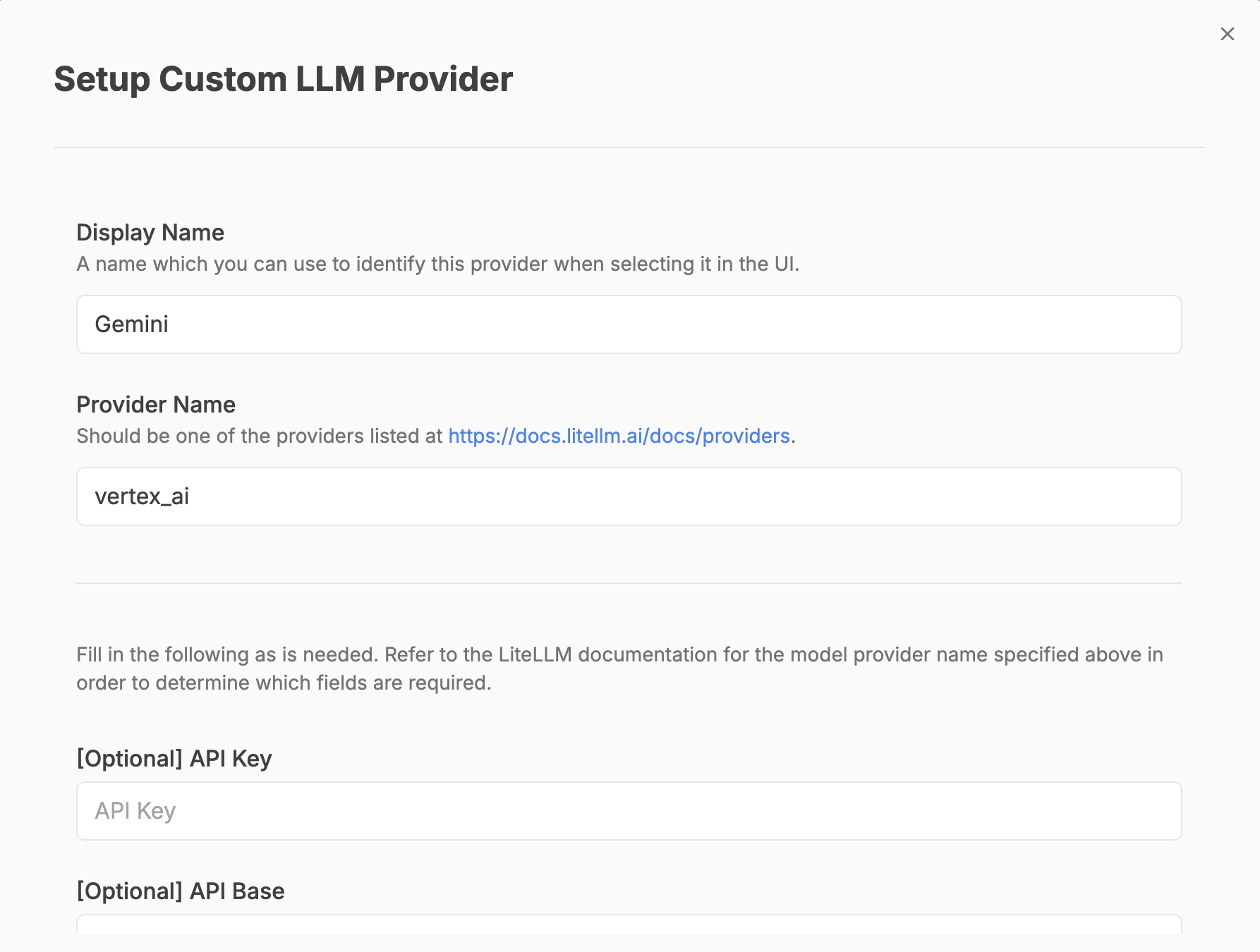
* Go to **Admin Panel → LLM Providers**
* Add a **Custom LLM Provider**
* Fill in the necessary fields:
* **Provider Name**: VertexAI
* **Project ID**: `YOUR_GCP_PROJECT_ID`
* **Location/Region**: (e.g. `us-central1`)
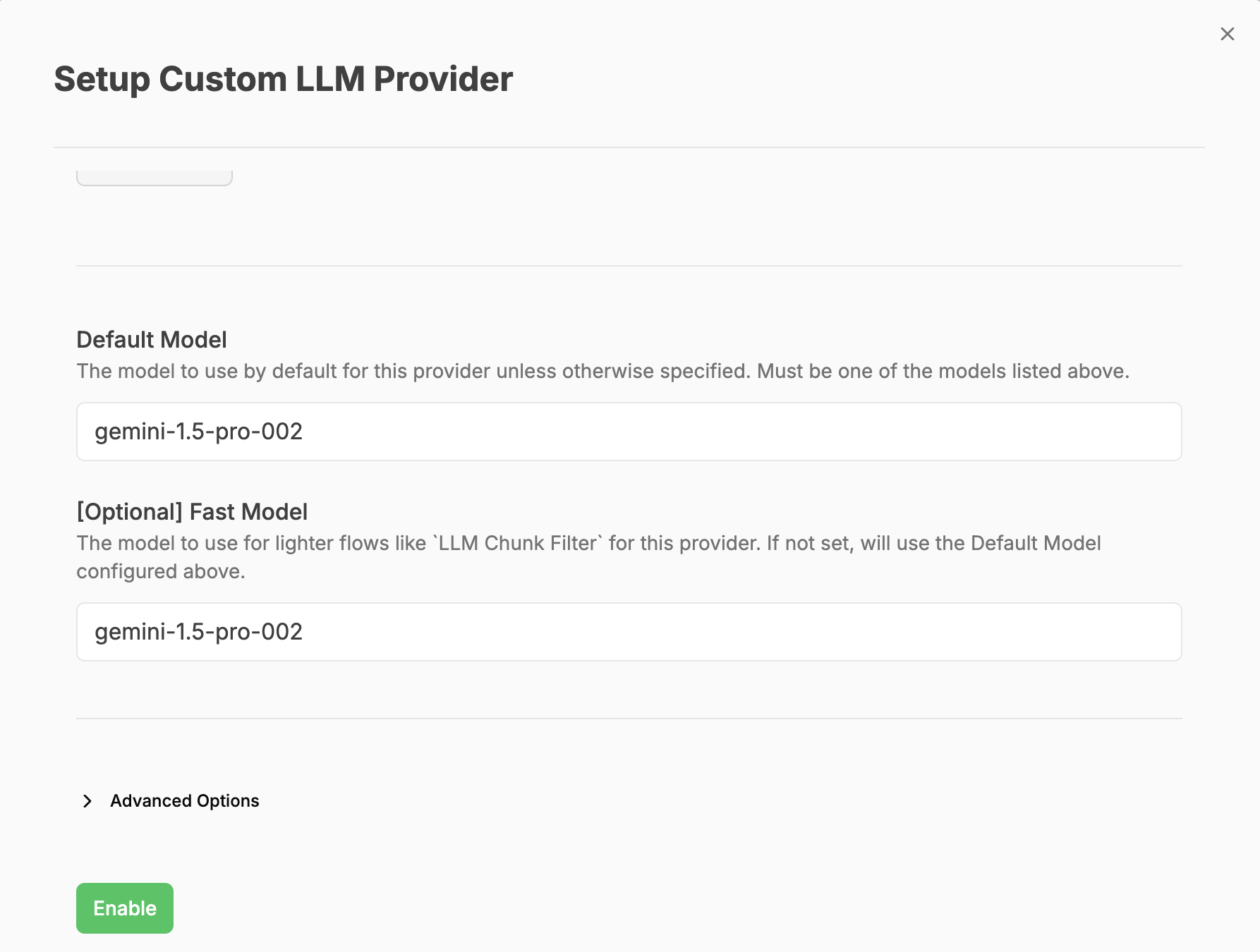
* **Model**: The LLM you want to use (e.g. `text-bison@001`)
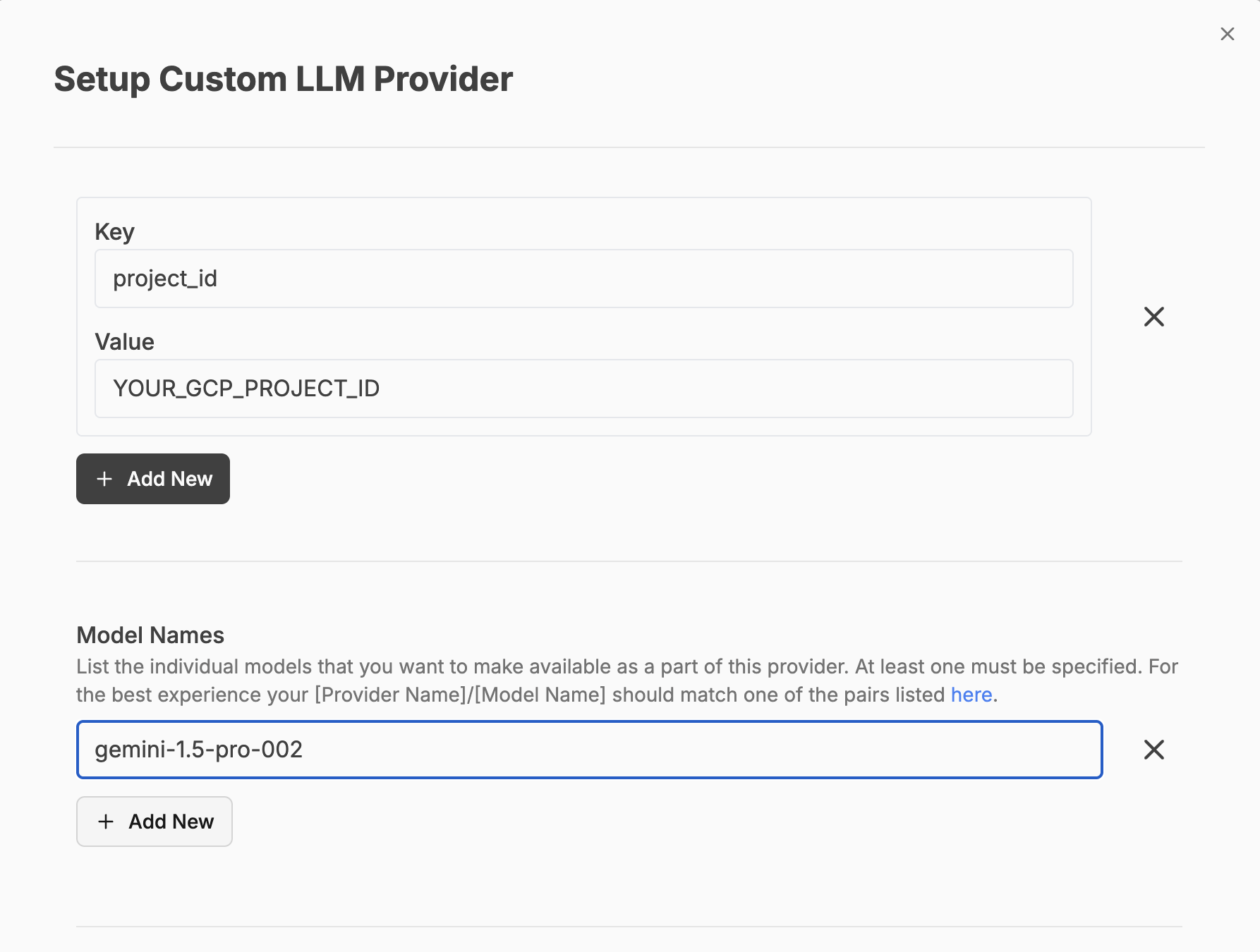 4. **Save and Test**\
Hymalaia should now be able to call Vertex AI using the gcloud credentials.
***
## 🔐 Use a Service Account to authenticate
1. **Create a Service Account**
* Go to the [GCP Console → IAM & Admin → Service Accounts](https://console.cloud.google.com/iam-admin/serviceaccounts)
* Click **+ Create Service Account**
4. **Save and Test**\
Hymalaia should now be able to call Vertex AI using the gcloud credentials.
***
## 🔐 Use a Service Account to authenticate
1. **Create a Service Account**
* Go to the [GCP Console → IAM & Admin → Service Accounts](https://console.cloud.google.com/iam-admin/serviceaccounts)
* Click **+ Create Service Account**
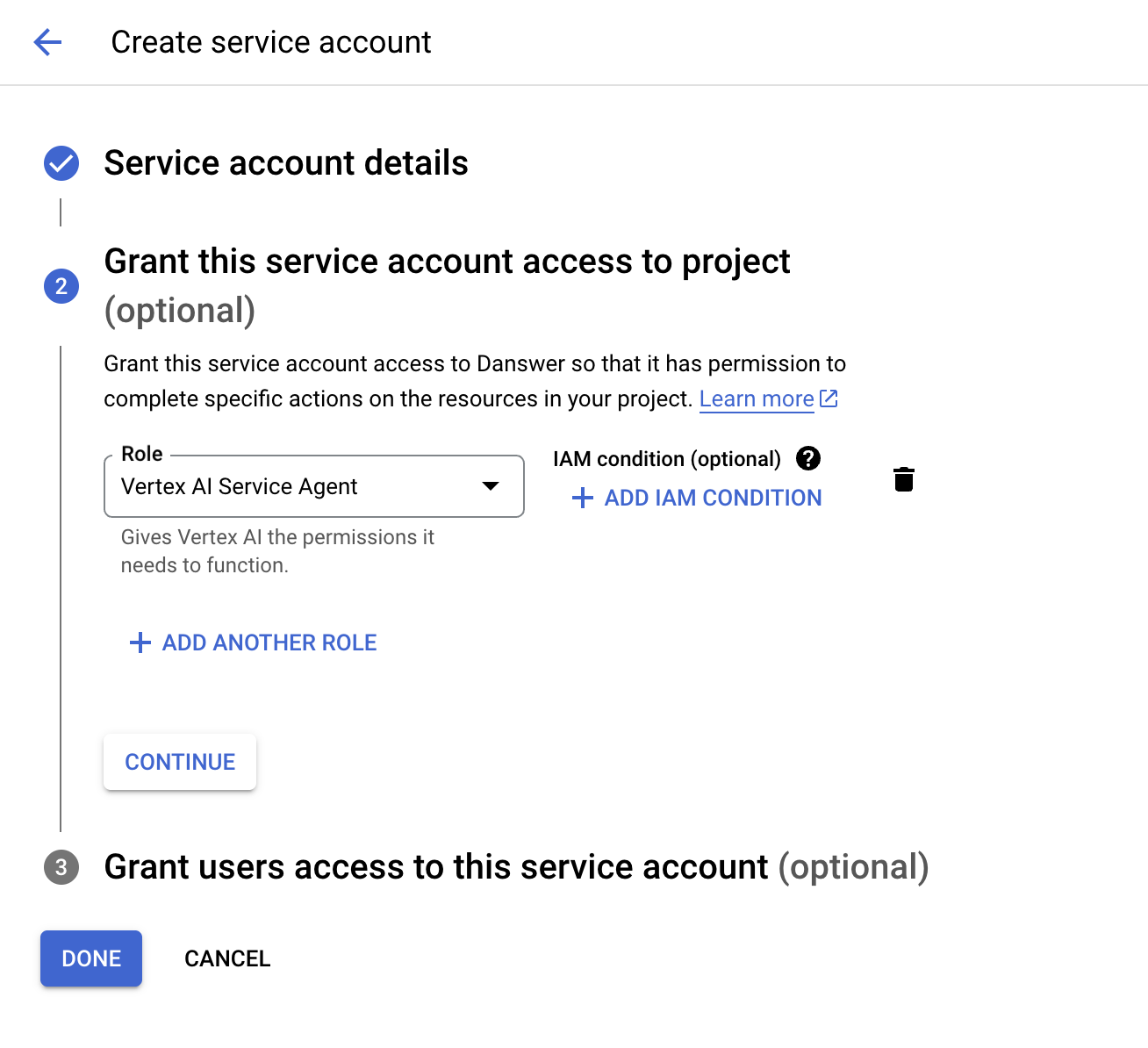 * Name it something like `hymalaia-vertex-ai`
* Assign the **Vertex AI Administrator** role
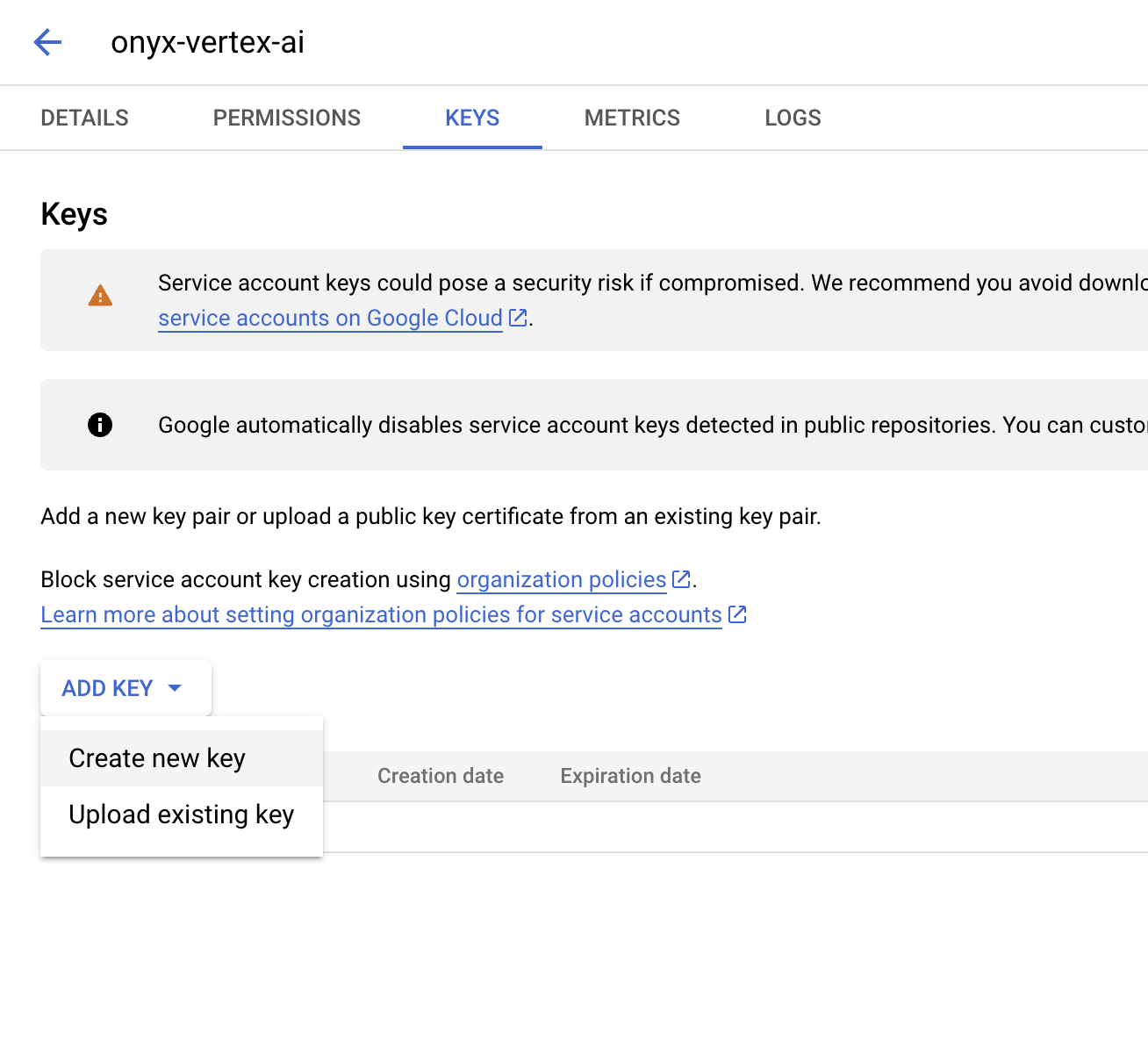
2. **Generate a Key**
* Click into your new service account
* Go to the **Keys** tab
* Click **Add Key → Create New Key → JSON**
* Download and save the `.json` file
* Name it something like `hymalaia-vertex-ai`
* Assign the **Vertex AI Administrator** role
2. **Generate a Key**
* Click into your new service account
* Go to the **Keys** tab
* Click **Add Key → Create New Key → JSON**
* Download and save the `.json` file
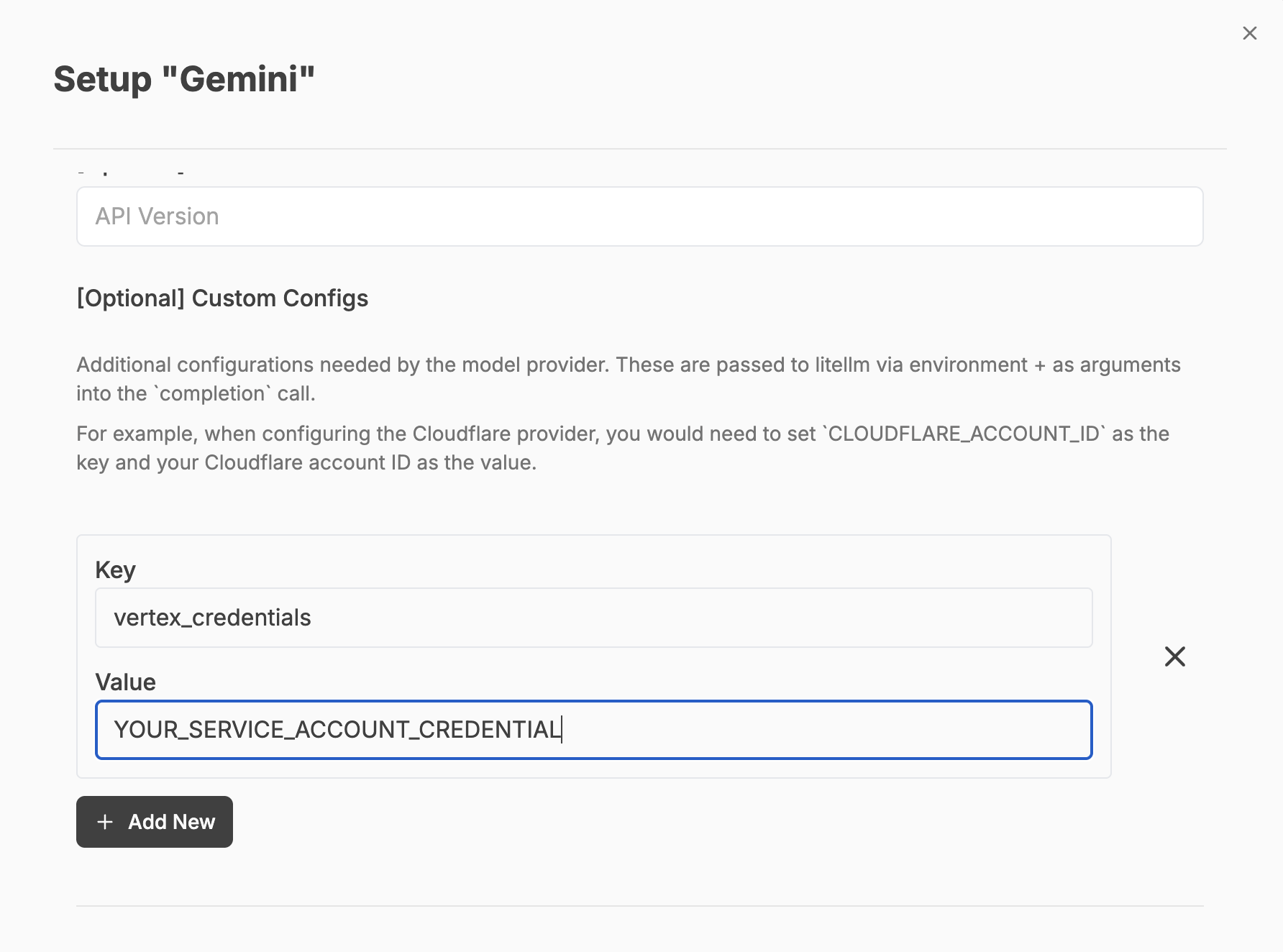
 3. **Configure in Hymalaia Admin Panel**
* Go to **Admin Panel → LLM Providers**
* Add a **Custom LLM Provider**
* Provide:
* **Service Account Credentials**: Paste the **contents** of the JSON file
* **Project ID**
* **Location**
* **Model**
4. **Save and Confirm**\
Hymalaia will now use Vertex AI authenticated via the service account credentials.
***
3. **Configure in Hymalaia Admin Panel**
* Go to **Admin Panel → LLM Providers**
* Add a **Custom LLM Provider**
* Provide:
* **Service Account Credentials**: Paste the **contents** of the JSON file
* **Project ID**
* **Location**
* **Model**
4. **Save and Confirm**\
Hymalaia will now use Vertex AI authenticated via the service account credentials.
***